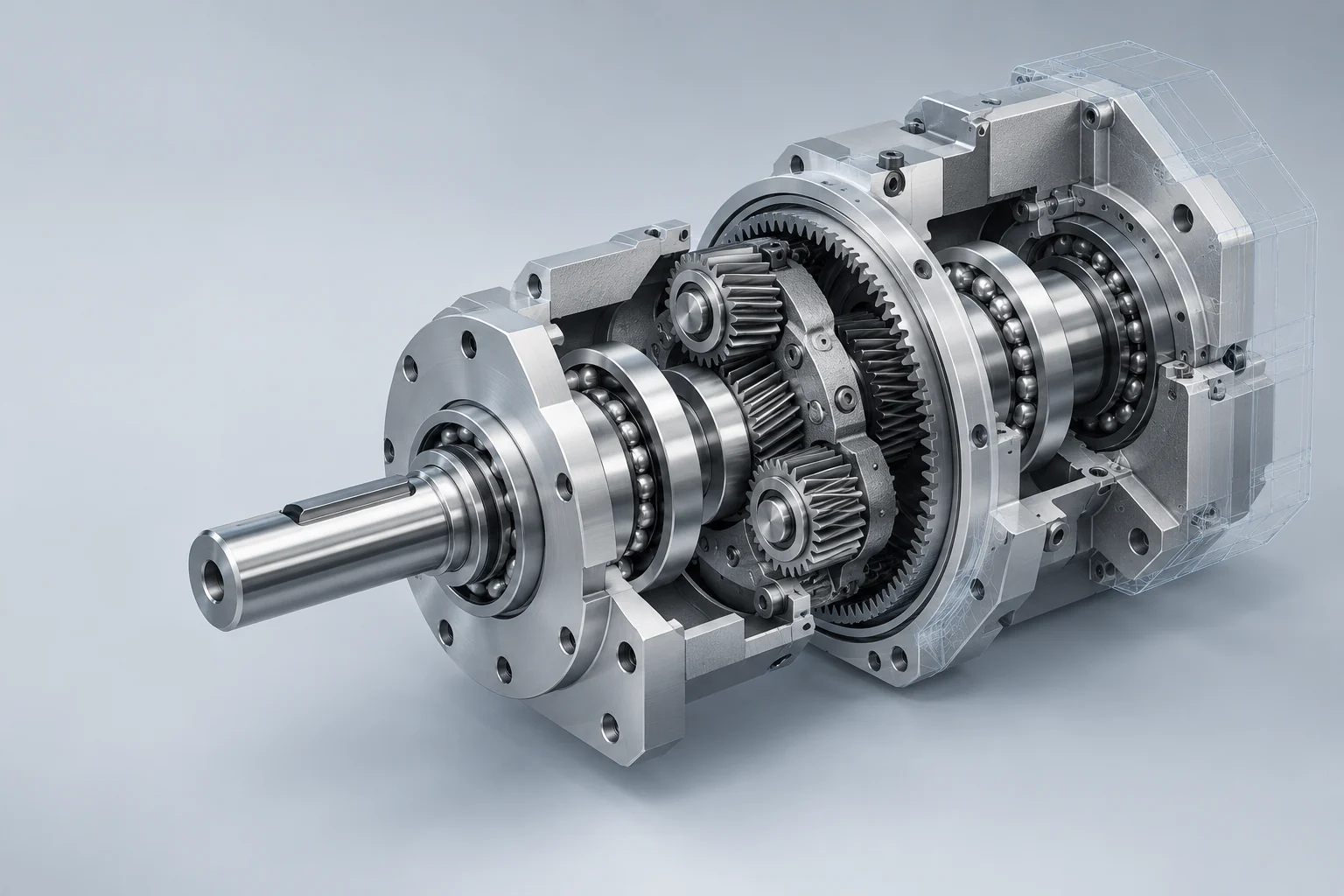
Design & detailing
Work on parts, assemblies and production drawings from the workstation that already has the right CAD version, templates and project references.
Keep assemblies, drawings, plug-ins and project storage on your engineering workstation. Use Remotle to reach the same Windows desktop from a different desk, a home laptop or a project meeting, with the modelling work still running on its own GPU.1
An assembly depends on more than the main file. Referenced parts, materials, templates and installed add-ins belong to the working environment. Remote access lets you use that environment where it is, instead of setting up another engineering laptop.
The workstation stays on the network that serves its project data. Your remote device displays the result and sends input back, so the installed CAD application continues to do the modelling.
Work on parts, assemblies and production drawings from the workstation that already has the right CAD version, templates and project references.
Reach the working model from a meeting-room laptop. Inspect a component and its drawing in the installed application instead of relying on a prepared export.
Prepare a simulation or inspect results on the engineering machine. Disconnect when you leave the desk and reconnect to the workstation later.
Remote CAD should be evaluated with the assembly, monitors and controls your engineers actually use.
Use the laptop you already take to a review, or put a Remotle zero client on a fixed desk. An existing PC or Mac can become a dedicated terminal, while the engineering workstation remains responsible for the model.
Remote desktop, connection broker and zero client mode, together. Compare the whole route from the Windows workstation to the desk, including the client device and the people who use it.
Use a representative production project, including the references and peripherals that make the desk specific to your team.
1 Performance depends on the workstation, the client device and its displays, and the network connection.
2 Applications run on the Windows host. Check software requirements and remote-use licensing for your intended deployment.
3 4:4:4 colour depends on the workstation graphics card and the client device. HDR10 needs an HDR monitor and a client device that supports HDR.
4 Resolution, frame rate and the number of monitors depend on the workstation graphics card, the client device and its displays, and the network connection. Picture quality and frame rate adjust to the bandwidth available.