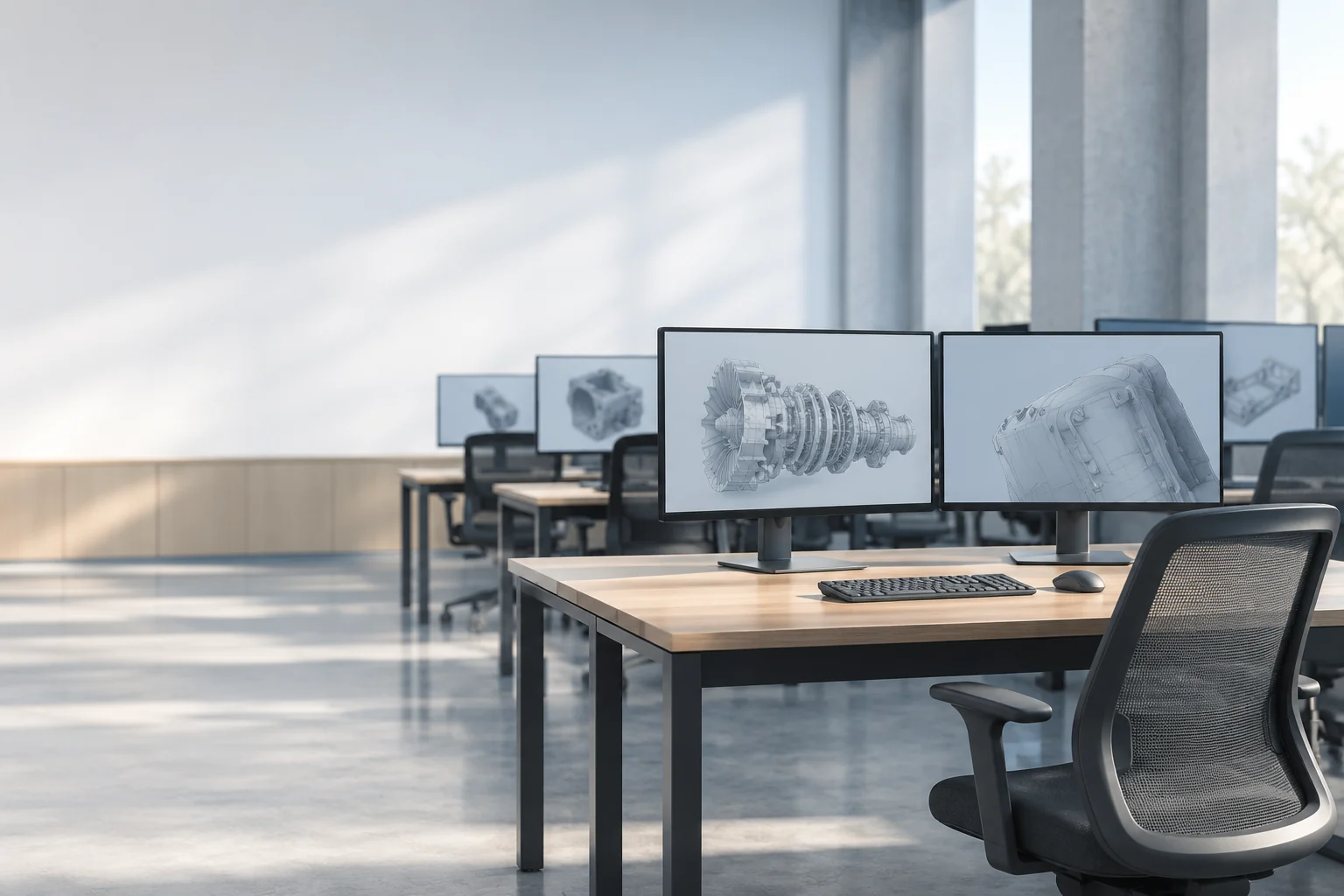
Specialist teaching
Let learners reach the applications configured on a Windows lab workstation from a teaching-room device. Keep versions, plug-ins and course project paths on the host.
Make your existing Windows workstations available from teaching rooms, shared desks and students’ laptops. Remotle combines remote desktop, workstation assignment and zero client mode, so you can build access around the machines and software you already own.1
CAD, visualisation and specialist teaching software often depend on a configured Windows environment. Keep that environment on the workstation and let a different device provide the screen, keyboard and mouse.
A learner signs in and selects a workstation assigned to them. For a shared physical desk, an existing PC or Mac can start directly in Remotle kiosk mode. Plan workstation availability and application licences around the class size.
Let learners reach the applications configured on a Windows lab workstation from a teaching-room device. Keep versions, plug-ins and course project paths on the host.
Offer access to assigned machines outside the teaching room. Students use a supported personal device to reach the workstation rather than install the full specialist environment locally.
Turn suitable existing PCs and Macs into dedicated Remotle terminals. Use the same desks for different learners, with workstation access assigned through the console.
Start with access to your existing machines. Choose devices and assignments around how classes are actually taught.
A terminal does not need to perform the modelling or rendering itself. Keep those tasks on the lab workstation, and evaluate whether the existing classroom computers can serve as Remotle zero clients.
Remote desktop, connection broker and zero client mode, together. Compare the whole route from the Windows workstation to the desk, including the client device and the people who use it.
Choose a teaching workflow that includes both classroom and independent use, then evaluate the full journey with learners and IT.
1 Performance depends on the workstation, the client device and its displays, and the network connection.
2 Applications run on the Windows host. Check software requirements and remote-use licensing for your intended deployment.
3 4:4:4 colour depends on the workstation graphics card and the client device. HDR10 needs an HDR monitor and a client device that supports HDR.
4 Resolution, frame rate and the number of monitors depend on the workstation graphics card, the client device and its displays, and the network connection. Picture quality and frame rate adjust to the bandwidth available.