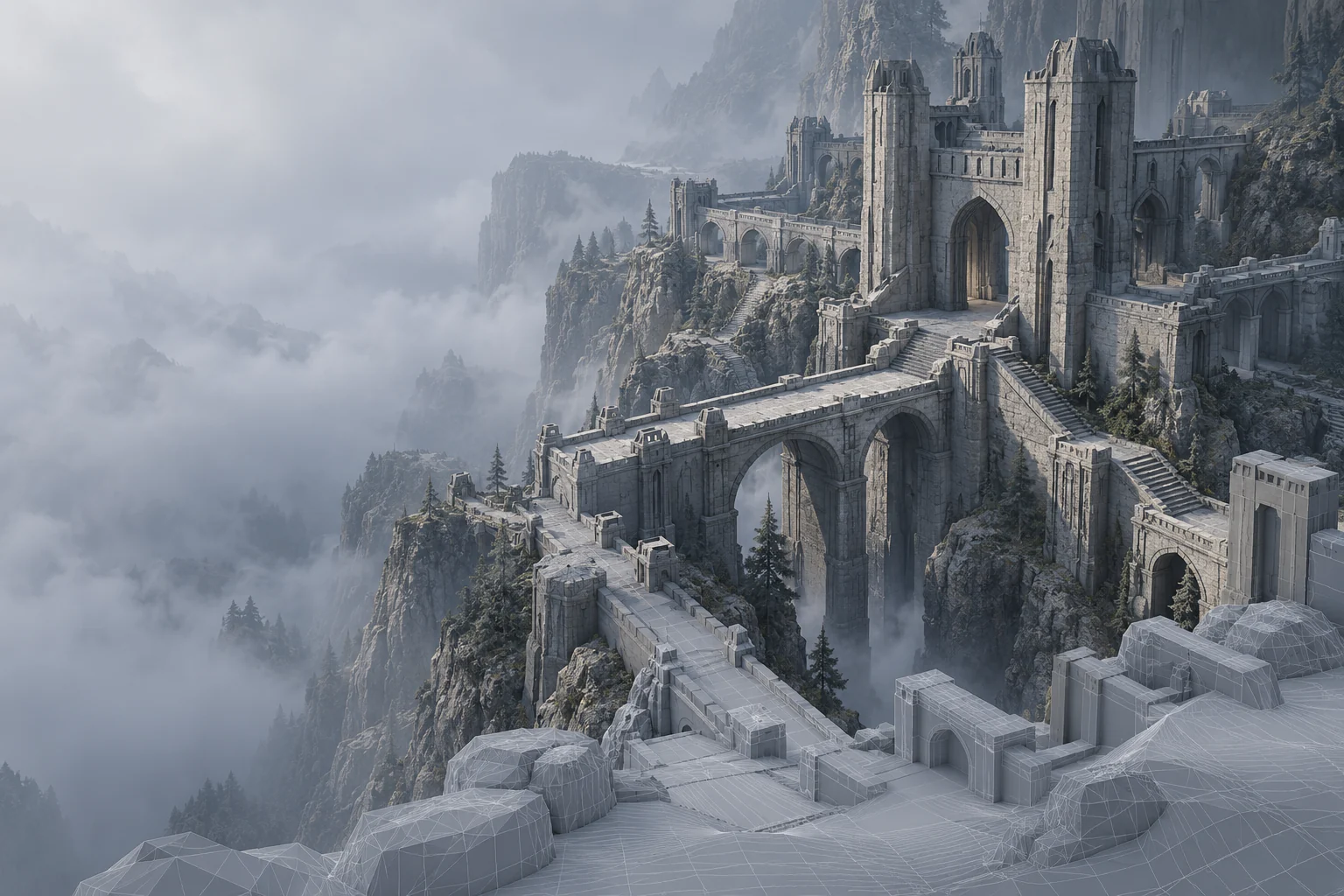
Worlds & content
Open a scene in the installed engine and use the studio GPU to navigate it. Keep references, plug-ins and project assets in the working environment.
Keep the engine, assets, art tools and build environment on your Windows workstation. Remotle brings its desktop to another desk or your laptop, with the studio machine’s GPU running the applications.1
An active game project brings together engine versions, plug-ins, source assets, caches and tools. Reach the machine already configured for that project instead of setting it up again on a remote laptop.
Artists and developers can each use the workstation assigned to them. Your endpoint supplies the screen and input while the host continues to run the editor, content tools and build processes.
Open a scene in the installed engine and use the studio GPU to navigate it. Keep references, plug-ins and project assets in the working environment.
Reach modelling, texturing and animation applications from another desk. Evaluate the picture and your pen or pointing devices with the assets you work on.
Use the host’s IDE, source checkout and build tools. Disconnect from the desktop when you leave and reconnect to the workstation later.
Use the Remotle client on a laptop or a dedicated terminal at a studio desk. Remotle includes the connection broker, so the artist or developer selects their assigned workstation by name.
Remote desktop, connection broker and zero client mode, together. Compare the whole route from the Windows workstation to the desk, including the client device and the people who use it.
Judge the desktop as a development environment, using editor actions and a representative project.
Evaluate the remote desk with an artist or developer using the same project and devices as a normal workday.
1 Performance depends on the workstation, the client device and its displays, and the network connection.
2 Applications run on the Windows host. Check software requirements and remote-use licensing for your intended deployment.
3 4:4:4 colour depends on the workstation graphics card and the client device. HDR10 needs an HDR monitor and a client device that supports HDR.
4 Resolution, frame rate and the number of monitors depend on the workstation graphics card, the client device and its displays, and the network connection. Picture quality and frame rate adjust to the bandwidth available.